 WinDock
 WinDock
Run Windows 11 on your Apple Silicon Mac
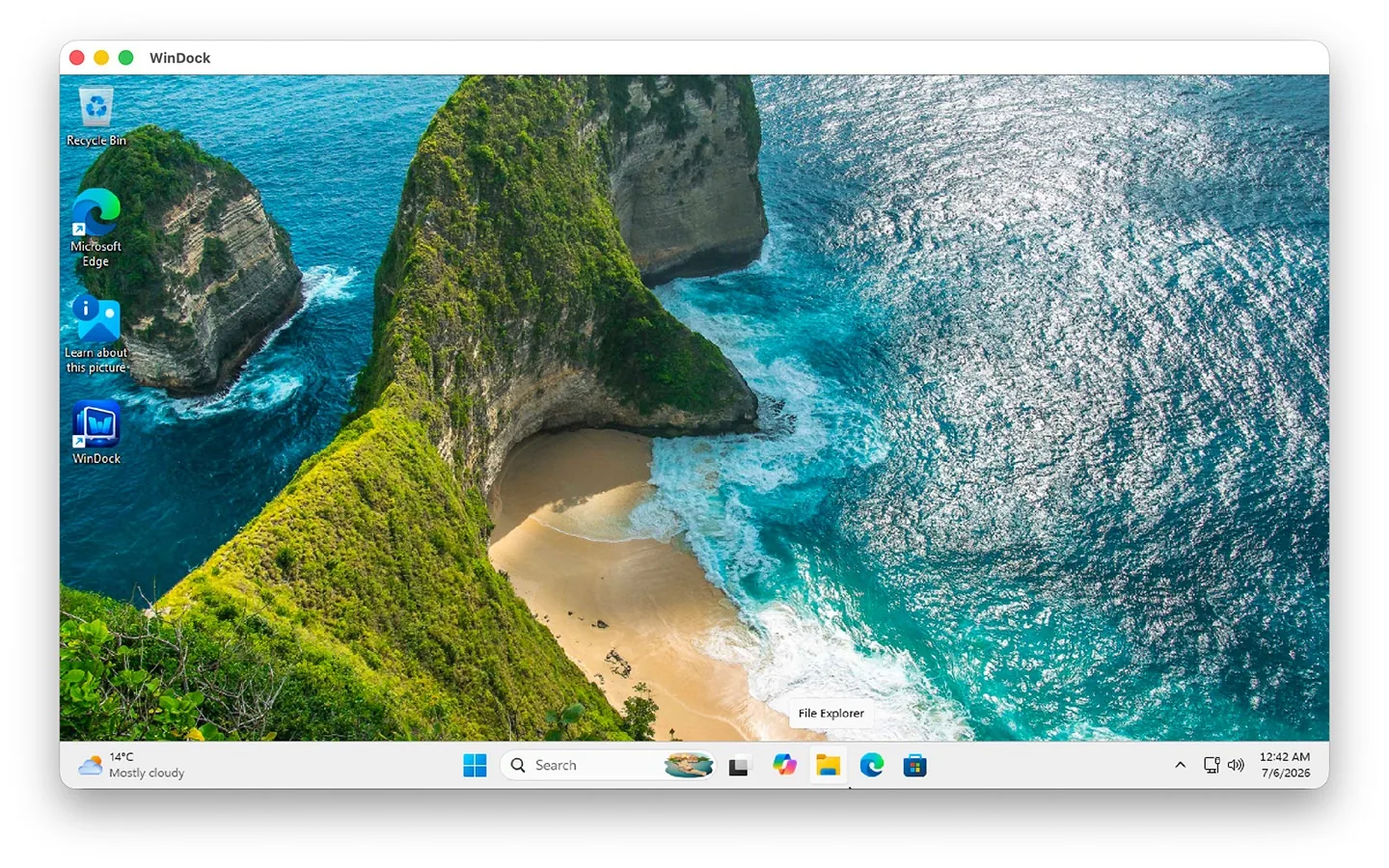
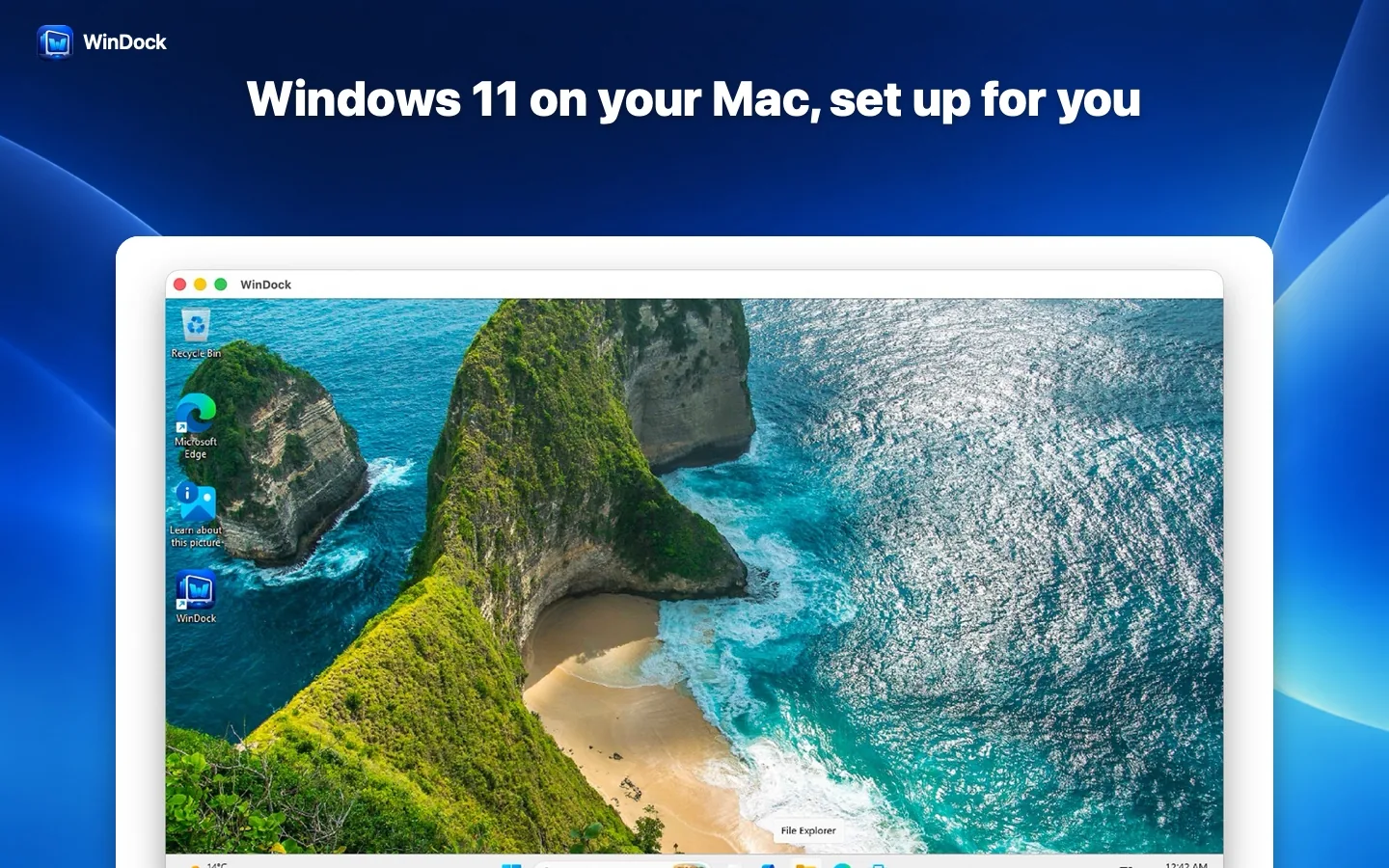
WinDock creates and runs a Windows 11 ARM virtual machine for you. Choose a Windows ISO from Microsoft and WinDock handles the rest — the virtual machine, Windows Setup, the display driver and the connection to your Mac files.
7-day free trial · One-time purchase · No subscription
Windows and your Mac, working together
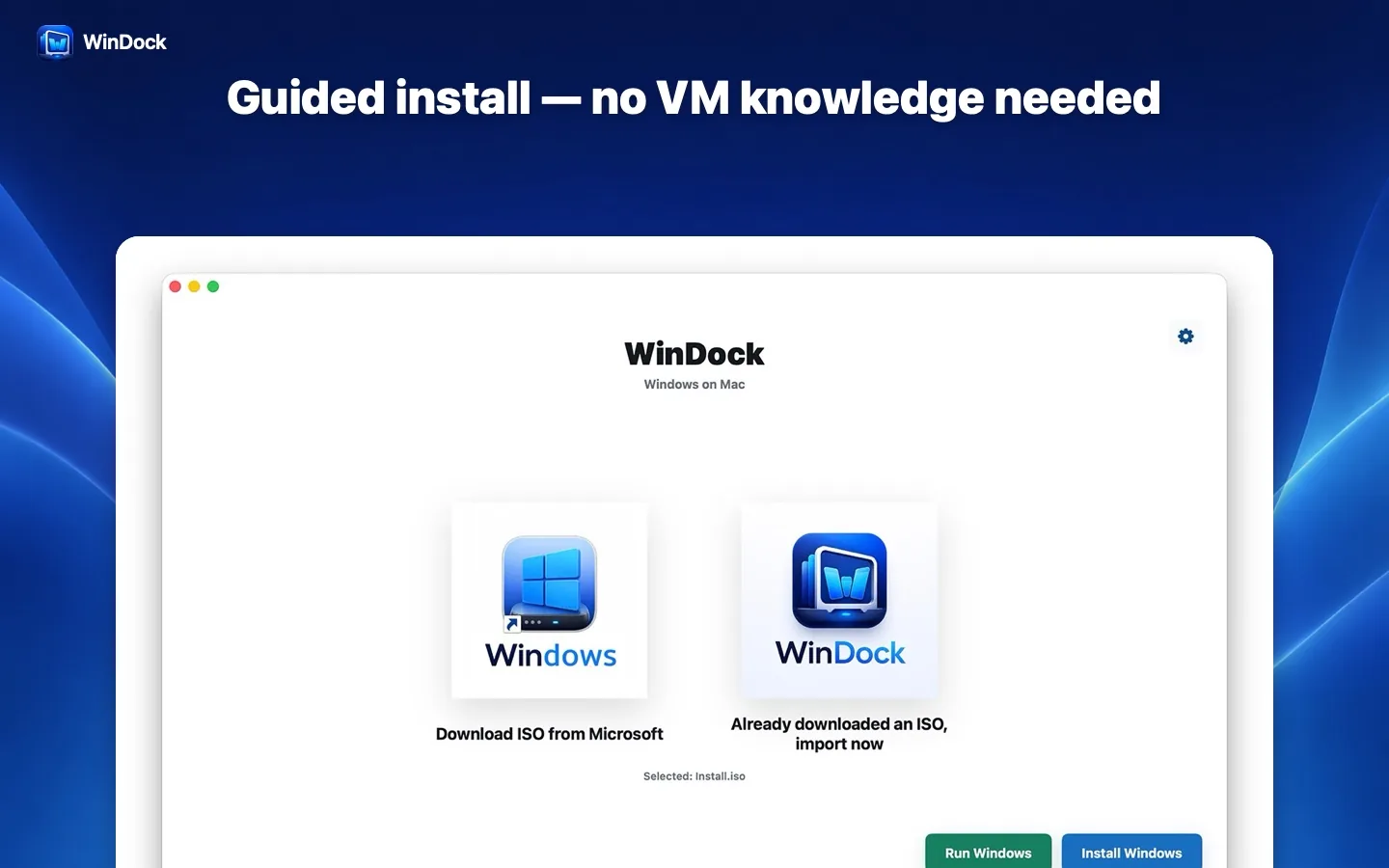
Guided installation
No virtual-machine knowledge needed. WinDock checks free space and your ISO, creates the VM and walks you through Windows Setup.
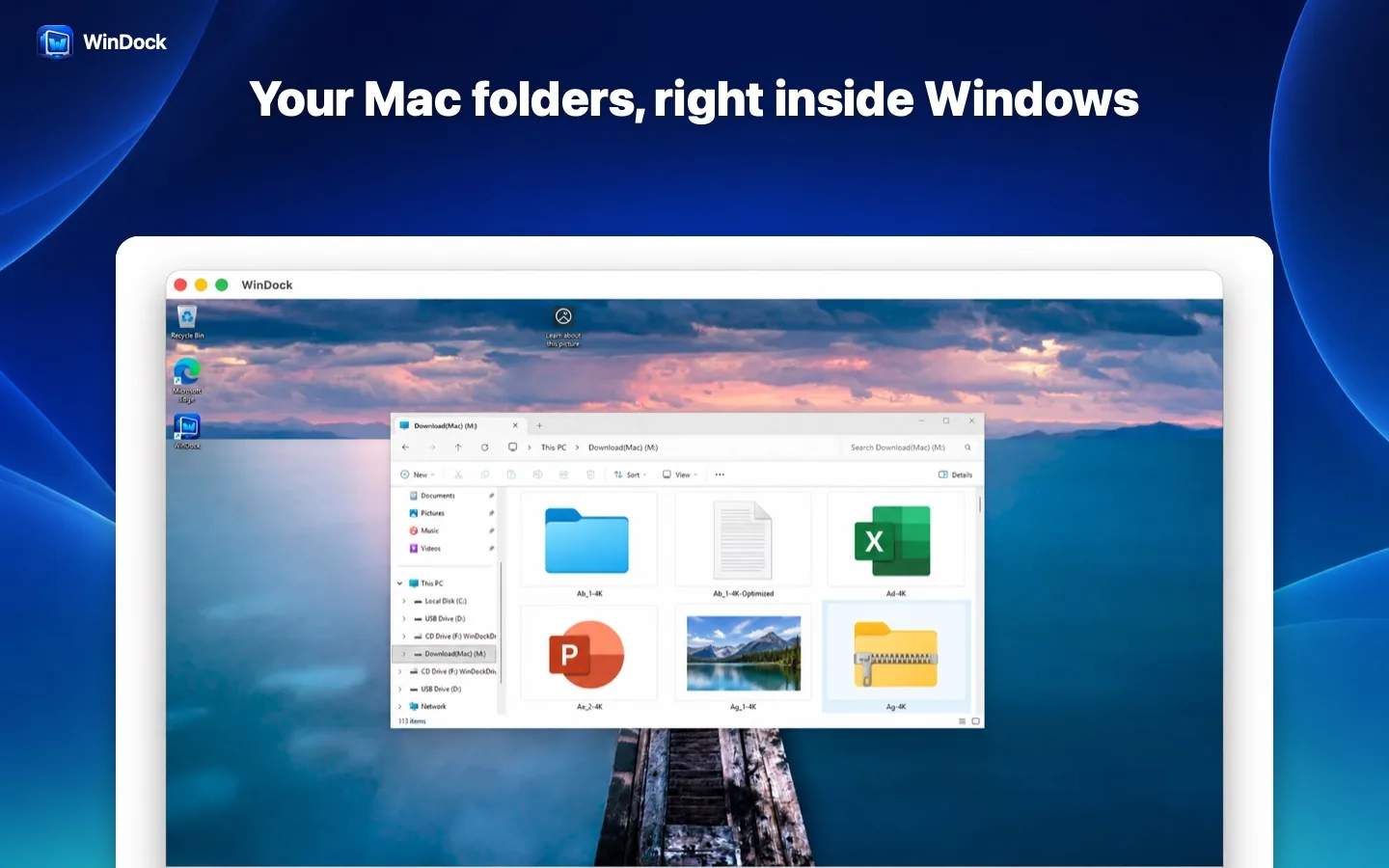
Mac folders inside Windows
The Mac folder you choose appears in File Explorer as the Download(Mac) drive. Open and save files directly — no copying back and forth.
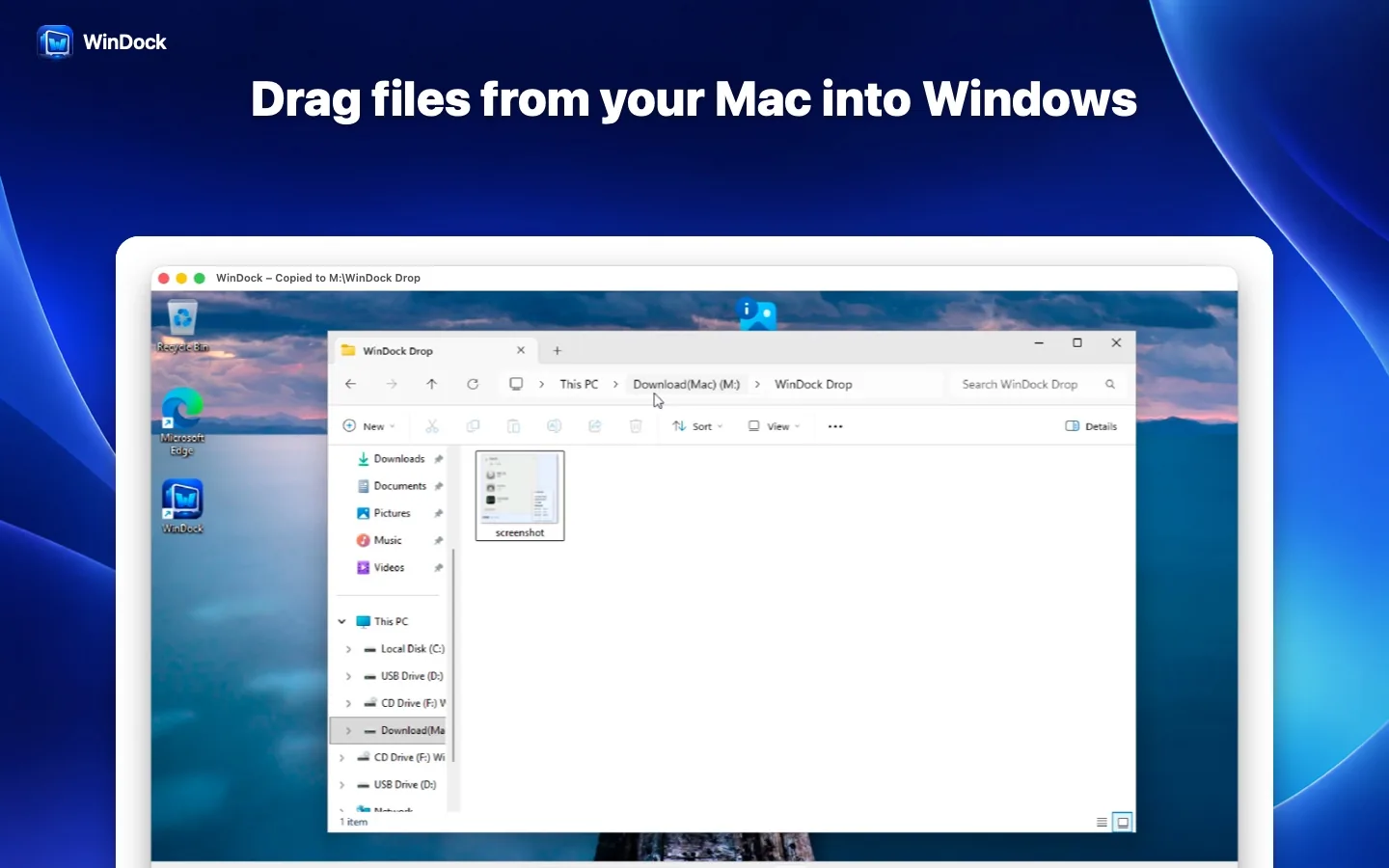
Drag and drop from Mac
Drag files from Finder into the Windows window. They are copied into the WinDock Drop folder without overwriting existing files.
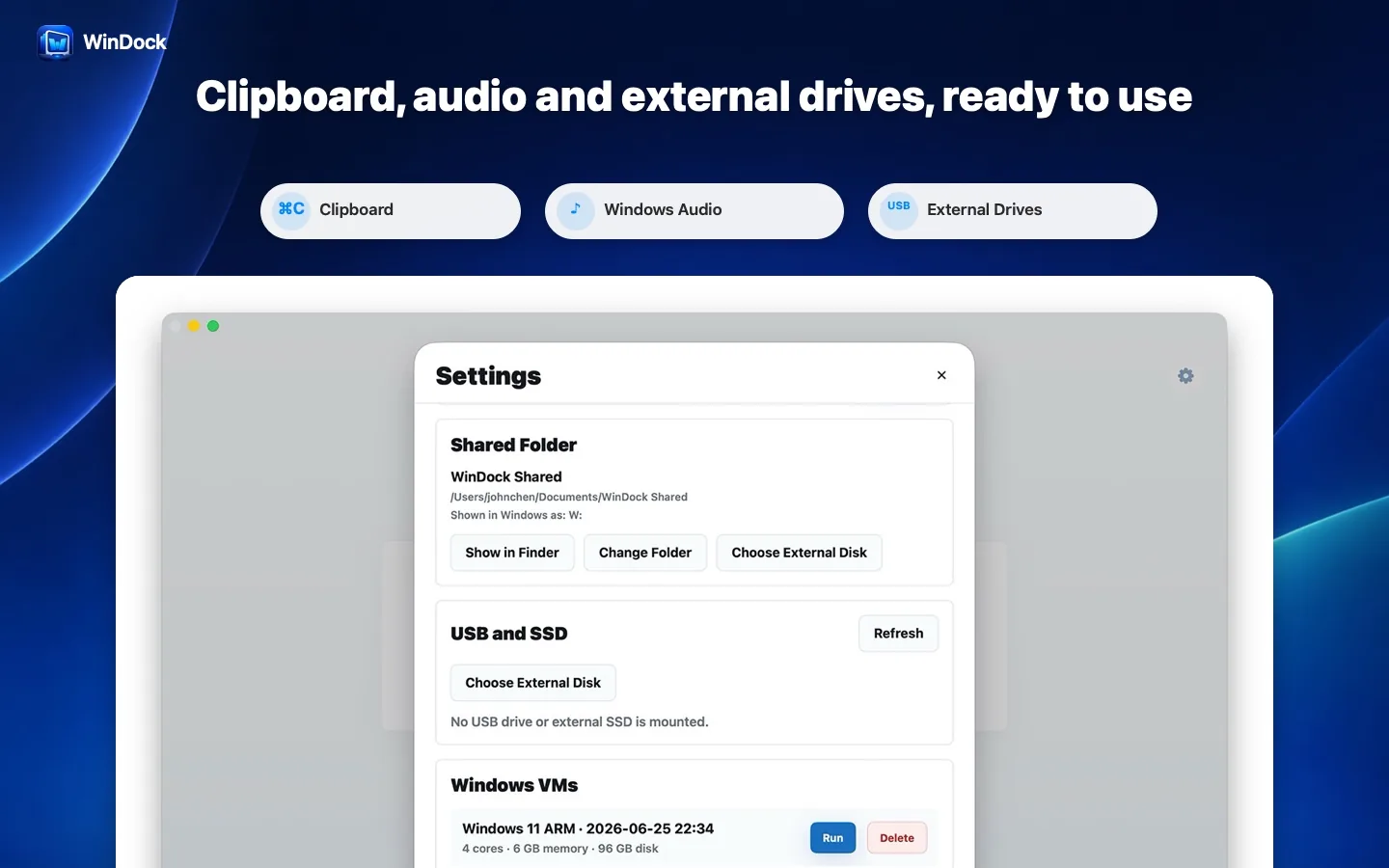
Two-way clipboard
Copy text in Windows and paste it on your Mac, and the other way round.
Sound and external drives
Hear Windows apps through your Mac and open authorized external drives from Windows.
Type in any language
Use your Mac keyboard with Windows input methods, including Chinese, Japanese and Korean. The app itself is available in 10 languages.
From Windows ISO to Windows desktop
Get Windows 11 for Arm
Download the Windows 11 ARM64 ISO from Microsoft, or choose one you already have. An x64 ISO will not work.
Choose the ISO in WinDock
WinDock checks the image and your free space, then creates the virtual machine.
Finish Windows Setup
Complete Windows Setup. After the first sign-in Windows restarts once to switch to high-resolution display.
Start working
Your Mac folder, clipboard, drag-and-drop and audio are ready after you sign in again.
Try for 7 days, keep it with one purchase
Start the free trial in WinDock or buy lifetime access directly. No subscription and no automatic charge when the trial ends. After the trial, installing or running Windows requires the lifetime purchase. Windows licenses are separate.
Requirements
- A Mac with Apple Silicon (M1 or later)
- macOS 14 Sonoma or later
- A Windows 11 ARM64 ISO from Microsoft
- Enough free disk space for Windows and your files (64 GB or more recommended)
Good to know
- WinDock runs the Arm version of Windows 11. Windows 11 on Arm runs most x86 and x64 apps through Microsoft's built-in emulation.
- 3D games and graphics-intensive apps are not supported. Software that needs special drivers or hardware may not work.
- Windows, installation media and activation keys are not included.
Related guides
Frequently asked questions
Which Windows ISO do I need?
The Windows 11 ARM64 ISO from Microsoft's "Download Windows 11 for Arm-based PCs" page. The regular x64 ISO cannot run on Apple Silicon.
Can I use Boot Camp instead?
No. Boot Camp only exists on Intel Macs. On Apple Silicon, a virtual machine is the way to run Windows.
Will my Windows apps work?
Most everyday and office apps work. Windows 11 on Arm emulates x86 and x64 programs. Apps that need their own drivers, anti-cheat systems or heavy 3D graphics may not. Use the 7-day trial to test the apps you need.
How do I move files between Mac and Windows?
Use the Download(Mac) drive that WinDock adds to File Explorer, or drag files from Finder into the Windows window.
Is there a subscription?
No. WinDock has a 7-day free trial and a one-time lifetime purchase in the Mac App Store.
Where is my virtual machine stored?
Locally on your Mac, inside WinDock's app data. Nothing is uploaded to a cloud service.